
Download OmniPlan – Powerful Project Management Tool for macOS
Overview of OmniPlan
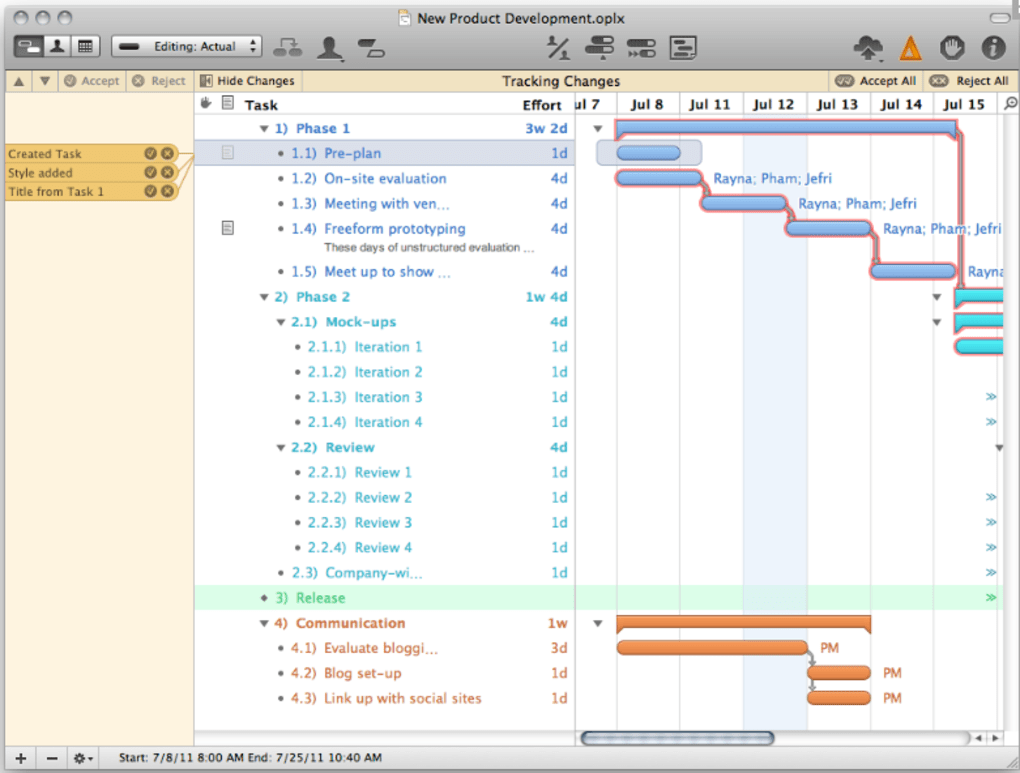
OmniPlan is a macOS‑first project‑management solution that positions itself as a sleek, affordable alternative to Microsoft Project. Designed for creative teams, freelancers, and small‑to‑medium businesses, OmniPlan combines classic Gantt‑chart visualisation with modern resource‑leveling, cost‑tracking, and milestone management. The interface follows Apple’s design language, making it feel native on macOS while still offering the depth required to turn strategic goals into actionable task lists.
Users can break down complex initiatives into logical work packages, assign resources with clear availability indicators, and monitor budgets in real time. One of OmniPlan’s standout capabilities is its ability to export projects into formats that Microsoft Project can read, facilitating smooth collaboration with stakeholders still using the Windows‑centric tool. Although Microsoft Project remains the industry heavyweight in terms of raw feature count, OmniPlan compensates with a lower price point, intuitive UI, and tight integration with macOS features such as Touch Bar support, iCloud syncing, and native printing.
Recent updates have added full Mavericks compatibility, improved CSV/HTML export handling, and refined localisation for German users, demonstrating the developer’s commitment to stability and international usability.
Key Features & Benefits
- Dynamic Gantt Charts: Drag‑and‑drop task bars, set dependencies, and instantly visualise critical paths.
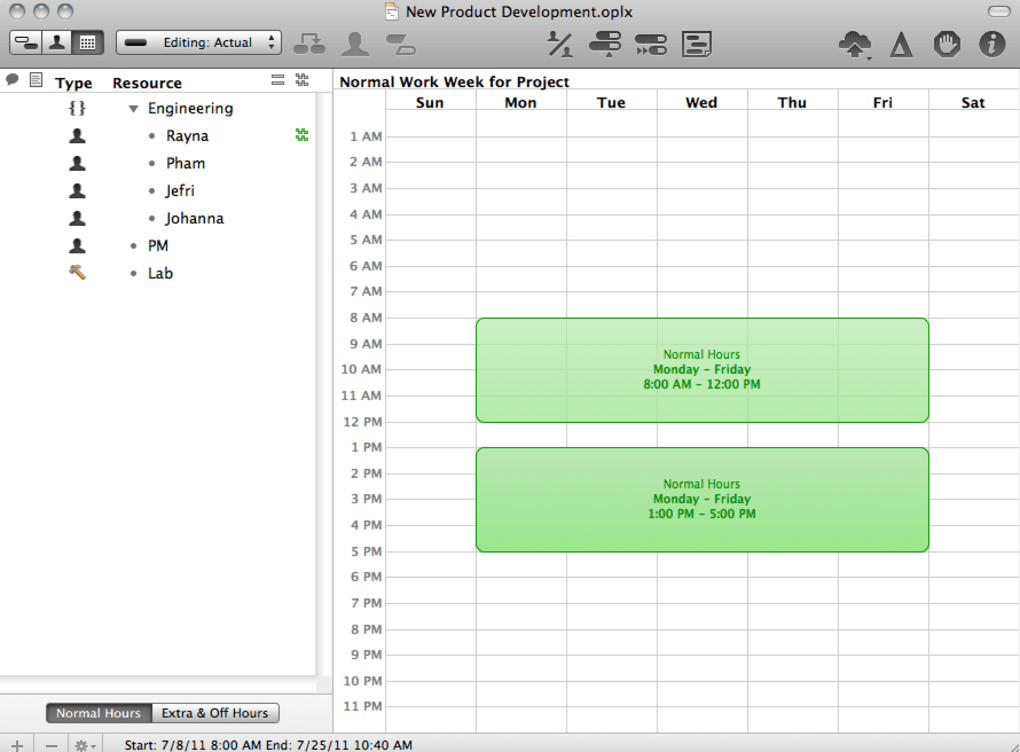
- Resource Leveling & Workload Balancing: Automatically distribute assignments based on availability, preventing overallocation.
- Cost Management: Track budgets per resource, per task, and per phase with real‑time cost roll‑up.
- Milestones & Summaries: Create high‑level summaries that translate strategic objectives into digestible milestones.
- Export & Import Flexibility: Export to Microsoft Project (MPP), CSV, PDF, HTML, and import from MPP files for seamless cross‑platform collaboration.
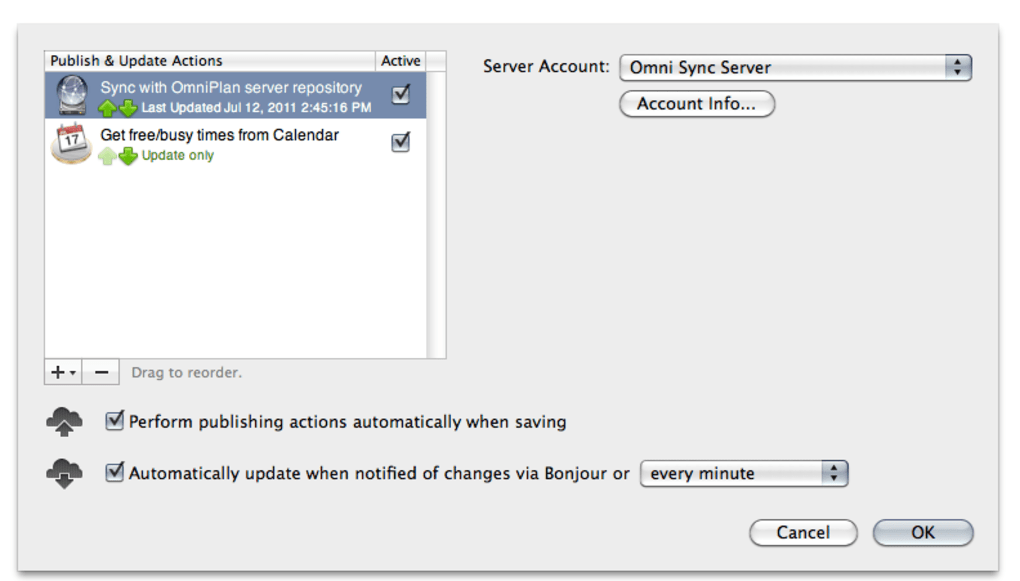
- iCloud Sync & Collaboration: Share projects via iCloud, allowing team members to view updates instantly on any Mac.
- Customisable Templates & Styles: Save project templates, define custom task styles, and reuse them across multiple plans.
- Robust Reporting: Generate printable HTML reports, Gantt snapshots, and resource utilisation charts.
Each of these features is engineered to reduce the friction that often accompanies traditional project‑planning tools. For example, the resource‑leveling engine evaluates each team member’s capacity and automatically shifts tasks to avoid bottlenecks—a task that would otherwise require manual adjustments in MS Project. The cost‑tracking module integrates labor rates directly into task assignments, giving managers a transparent view of project spend without needing a separate spreadsheet.
Additionally, OmniPlan’s export panel now remembers the last file type you used, speeding up repeated workflows for users who frequently exchange data with Windows‑based partners. The inclusion of alternate row colours in the Gantt view, as well as a restored “Clear Assignments” command, demonstrates attention to detail that enhances day‑to‑day usability. Collectively, these capabilities make OmniPlan a compelling option for macOS users seeking a balanced blend of power and simplicity.
Installation, Usage & Compatibility
How to Download and Install
OmniPlan is available through the Mac App Store and directly from the developer’s website. To install, simply purchase or download the trial version, click the Get button in the App Store, and the system will handle the rest. The installer respects macOS sandboxing rules, ensuring that the application runs in a secure environment without unnecessary file‑system access. After installation, launch OmniPlan from the Applications folder or via Spotlight. The first‑time launch wizard guides you through creating a new project, selecting a template, and configuring basic preferences such as default currency, working days, and resource pool.
Getting Started with a New Project
Upon opening OmniPlan, you’ll encounter a clean workspace divided into three primary panes: the task hierarchy on the left, the Gantt chart in the centre, and the inspector panel on the right. Begin by adding high‑level phases as summary tasks, then drill down into individual activities. Use the “+” button to insert tasks, and set dependencies by dragging the connector line from one bar to another. The inspector lets you assign resources, define start/end dates, and input estimated effort. As you populate the schedule, the software automatically calculates critical paths and highlights any resource overallocation in red.
Operating System Support
OmniPlan runs natively on macOS 10.9 Mavericks and later, including macOS Ventura, Monterey, and Big Sur. The application leverages modern APIs such as Metal for smooth chart rendering and supports Touch Bar shortcuts on compatible MacBook Pro models. While OmniPlan is primarily a macOS product, the developer offers an iOS companion app that lets you view and update projects on iPhone or iPad, though full editing capabilities remain desktop‑only.
The recent update also resolved several sandboxing issues that previously interfered with custom HTML report templates and CSV export encoding, ensuring a more reliable experience when sharing data with external stakeholders. Overall, the installation process is straightforward, and the software’s macOS‑centric design results in a responsive, stable environment for daily project management.
Pros, Cons & Frequently Asked Questions
Pros
- Intuitive macOS‑native UI that reduces the learning curve.
- Competitive pricing compared to Microsoft Project.
- Powerful resource‑leveling and cost‑tracking built‑in.
- Robust import/export options for cross‑platform collaboration.
- Regular updates that address bugs, improve localisation, and add OS support.
Cons
- Missing some advanced enterprise features found in MS Project (e.g., complex portfolio management).
- No native Windows version, limiting direct use on non‑Mac machines.
- Advanced reporting requires manual template creation.
- Collaboration is primarily iCloud‑based; lacks real‑time multi‑user editing.
Frequently Asked Questions
Can OmniPlan open Microsoft Project files?
Yes. OmniPlan can import .mpp files, allowing you to view and edit projects originally created in Microsoft Project. Export back to .mpp is also supported, though some complex MS Project features may not translate perfectly.
Is there a free version of OmniPlan?
OmniPlan offers a 30‑day free trial with full functionality. After the trial, you need to purchase a license (single‑user or family bundle). No permanently free tier is available.
How does OmniPlan handle team collaboration?
Collaboration is achieved through iCloud syncing. Team members with access to the same iCloud folder can view updates instantly. However, simultaneous editing is not supported; the last saved version overwrites previous changes.
Can I generate custom reports?
Yes. OmniPlan includes built‑in HTML and PDF report templates. Advanced users can edit the HTML templates, apply custom CSS, and even embed charts to suit specific reporting needs.
Is OmniPlan suitable for large enterprise projects?
While OmniPlan excels for small to medium‑size initiatives, enterprises that require portfolio management, multi‑project roll‑ups, or deep integration with ERP systems may find Microsoft Project or Primavera more appropriate.
Overall, OmniPlan offers a well‑balanced mix of usability and functionality for macOS users seeking a cost‑effective alternative to Microsoft Project. Its intuitive design, solid resource‑leveling, and reliable import/export capabilities make it a top choice for freelancers and SMBs.
Conclusion & Call to Action
If you’re working on a Mac and have grown weary of the clunky Windows‑centric experience that Microsoft Project delivers, OmniPlan provides a refreshingly clean, yet capable, project‑management environment. The software’s emphasis on visual planning, resource fairness, and budget awareness aligns well with modern agile and waterfall workflows alike. While it may not replace a full‑scale enterprise PMO, OmniPlan’s price point, native macOS integration, and export compatibility make it a smart investment for teams that value simplicity without sacrificing essential project controls. Ready to streamline your project planning on macOS? Download OmniPlan today and start your 30‑day free trial—experience the difference a Mac‑first design can make for your next project.







